How to use 120 AI Chat
Chat with cloud and local models, compare answers, and work with files, web pages, images, and video.
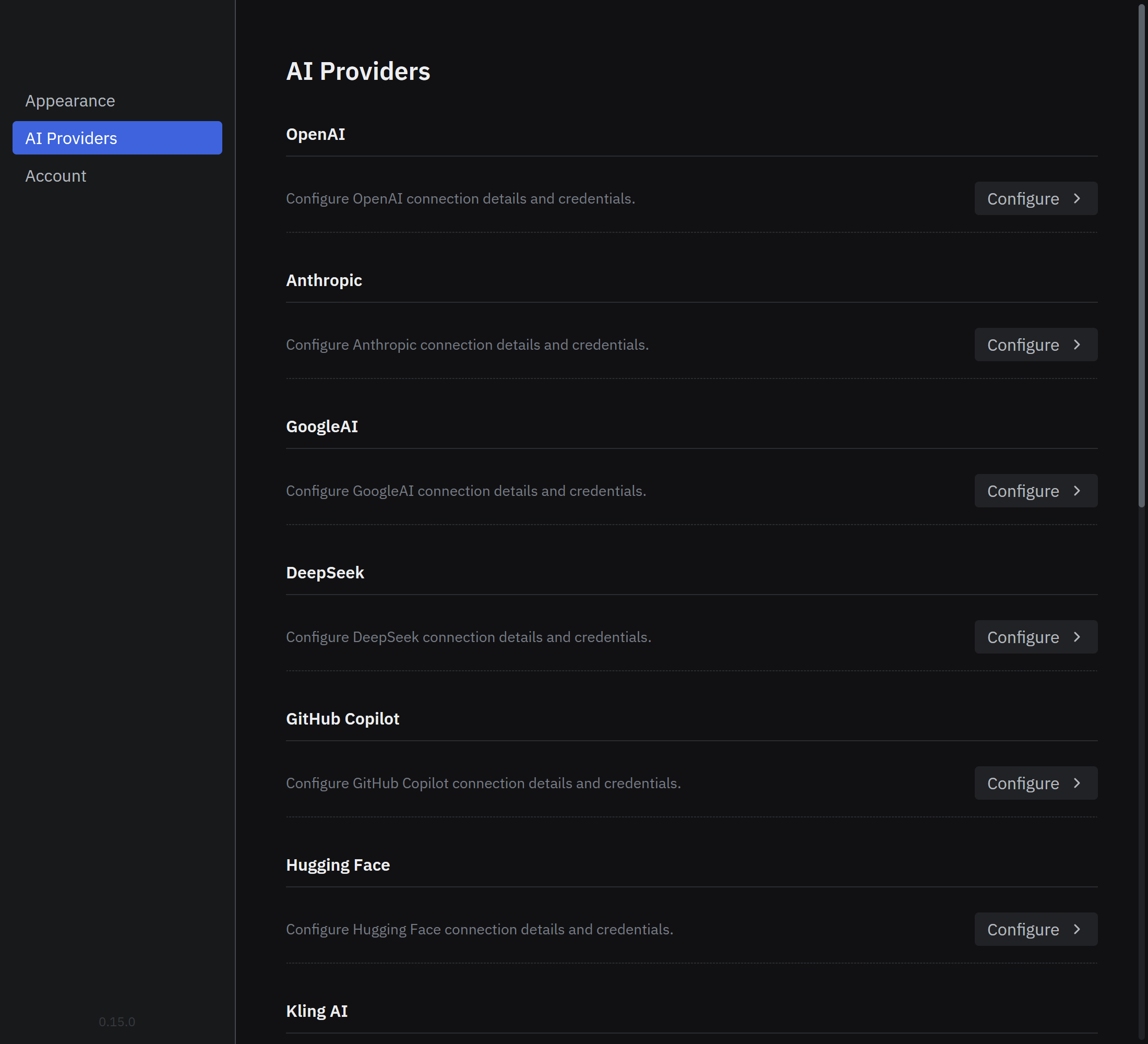
Connect a cloud or local model
- Open Settings > AI Providers.
- Select Configure beside your provider, enter its API key or server details, and select Save.
- Choose a model from the model picker below the message field.
Start a conversation
- Select New conversation in the title bar.
- Choose a model, write your message, and select Send.
- Ask follow-up questions in the same conversation.
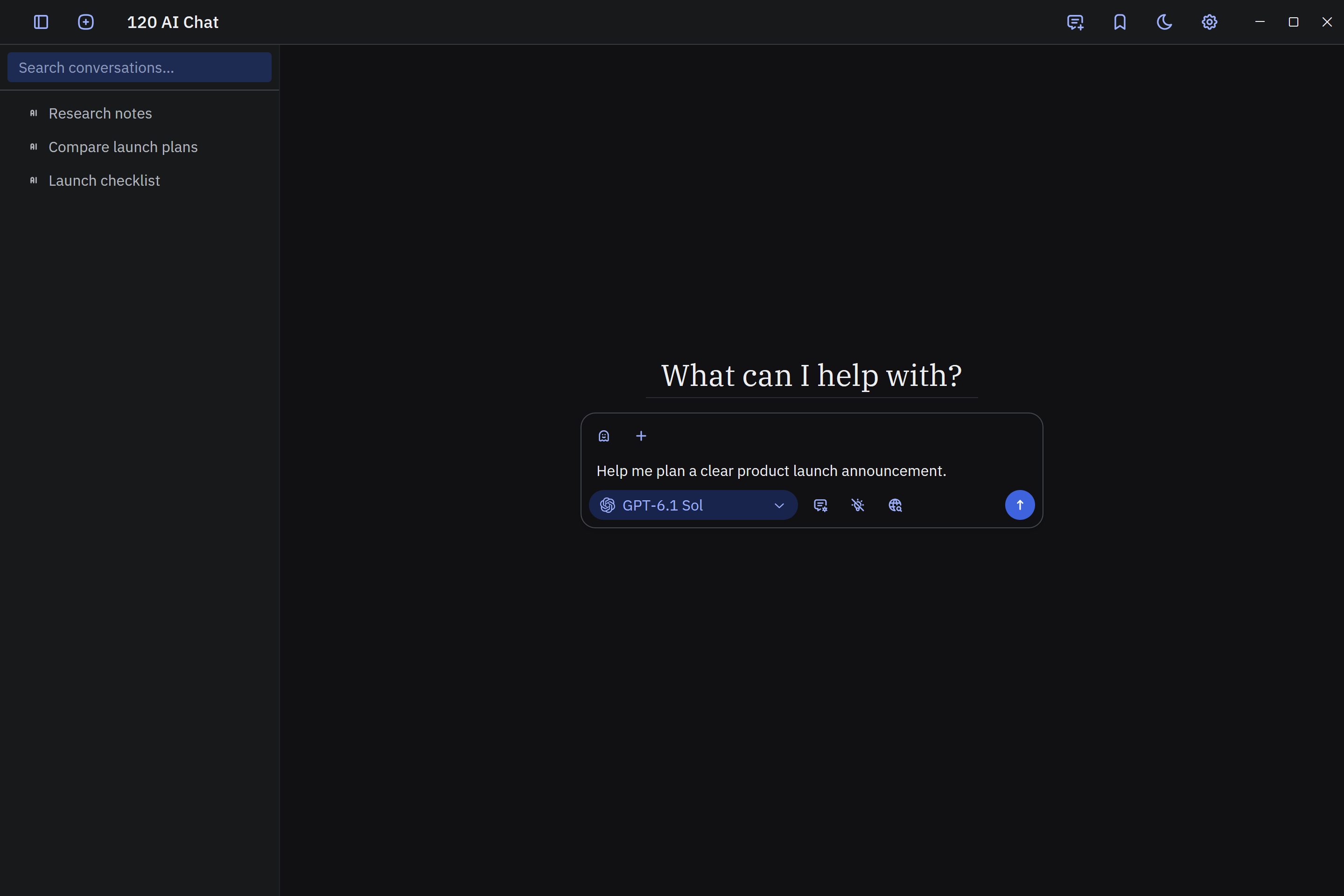
Select a conversation in the sidebar to continue it.
Compare models side by side
- Add threads with New thread in the title bar, up to three threads per conversation.
- Select the model name beneath each thread to choose its model.
- Write a message in the shared message field and select Send to compare responses.
- Drag the dividers between threads to adjust their widths.
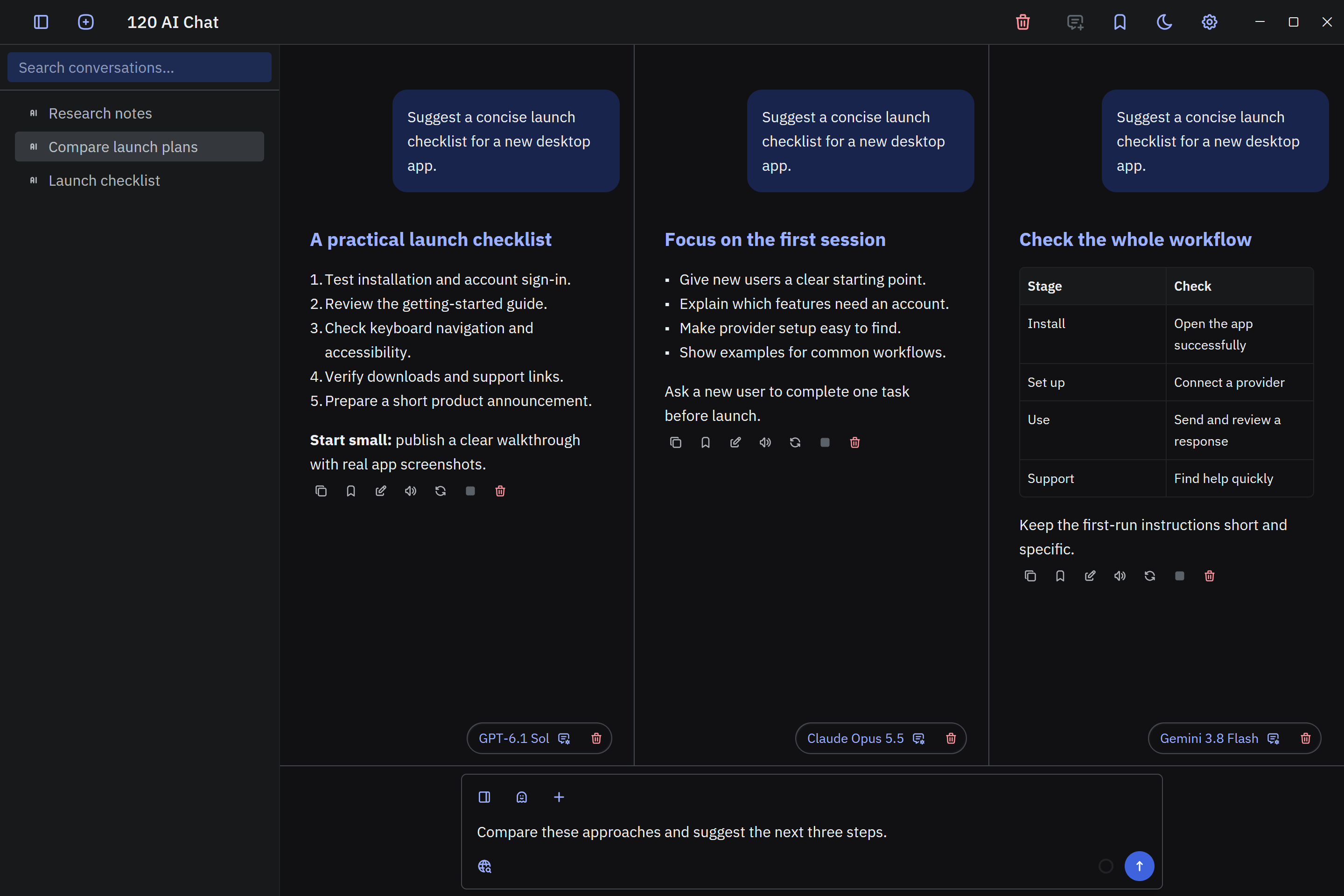
Use the layout button above the message field to switch between vertical and horizontal layouts.
Adjust context, instructions, and reasoning
Open Thread settings beside the model picker, or select the model name beneath a thread.
- Model: choose the provider and model for this thread.
- Reasoning effort: adjust how much reasoning the model uses.
- Message context limit: choose how many earlier messages to include.
- Output token limit: set the maximum response length.
- System prompt: set instructions, a writing style, or an output format.
- Temperature, Presence penalty, Frequency penalty, and Top P: adjust response variation.
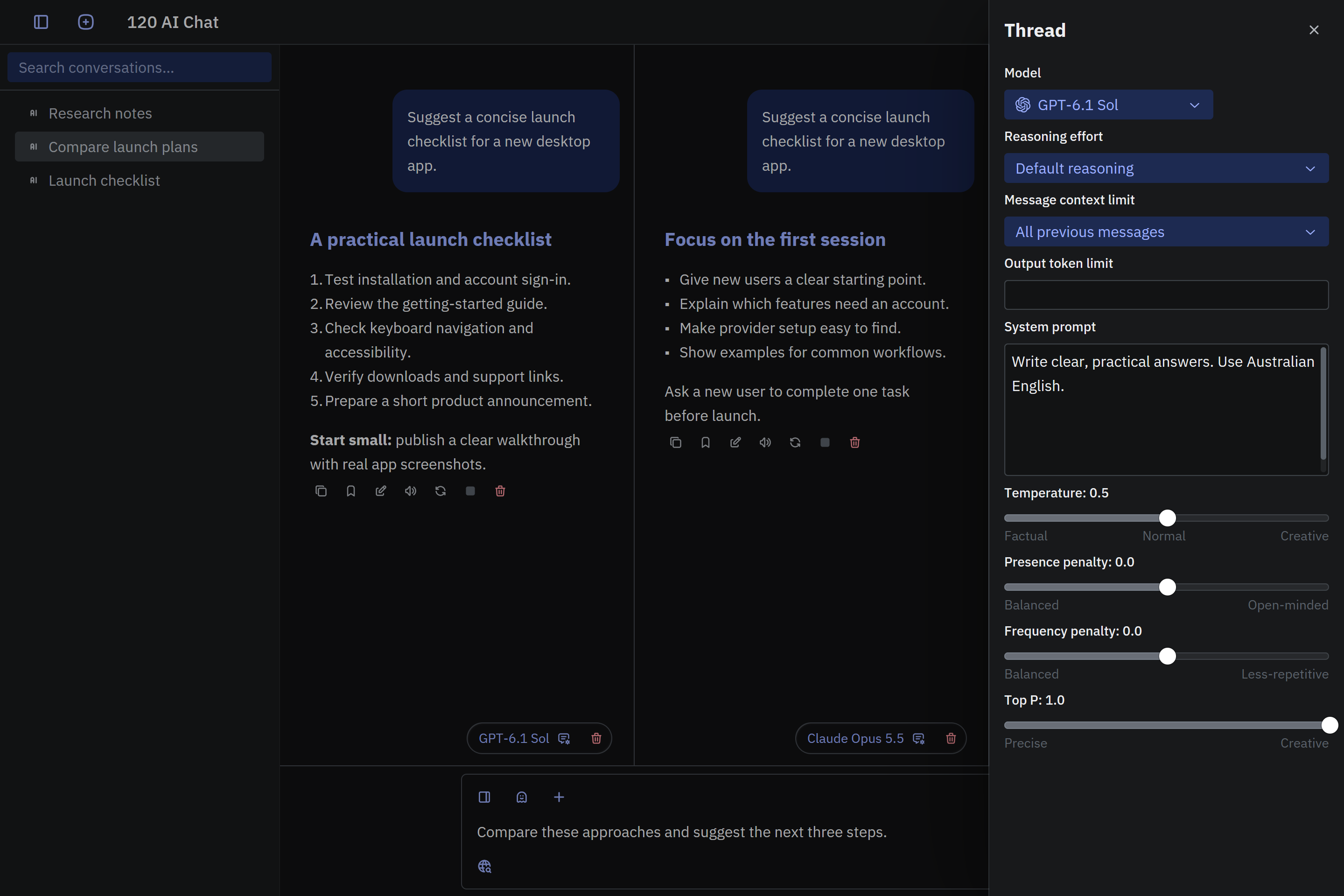
Click outside a text field to apply your changes.
Attach images and documents
- Select + above the message field and choose up to three files: images, PDFs, or text files.
- Check your attachments. Select × beside a file to remove it.
- Add your question and select Send.
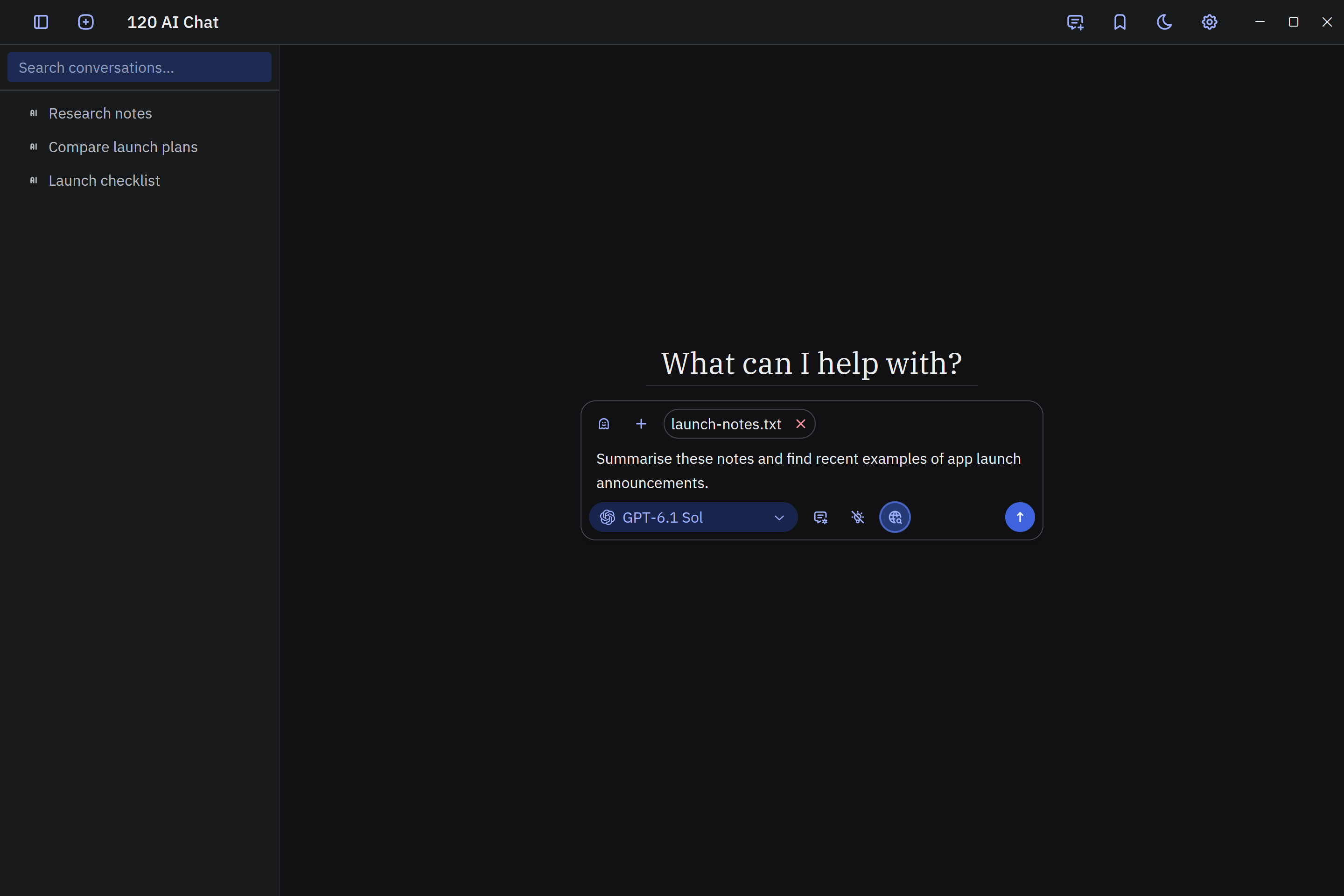
Search the web or read a link
Enable Web search beside the model controls, ask a question, and select Send. Open the source links in the response to read more.
To ask about a web page, paste its URL into your message and add your question.
Generate images and videos
- Choose an image or video model in the model picker.
- Describe what you want to create and select Send.
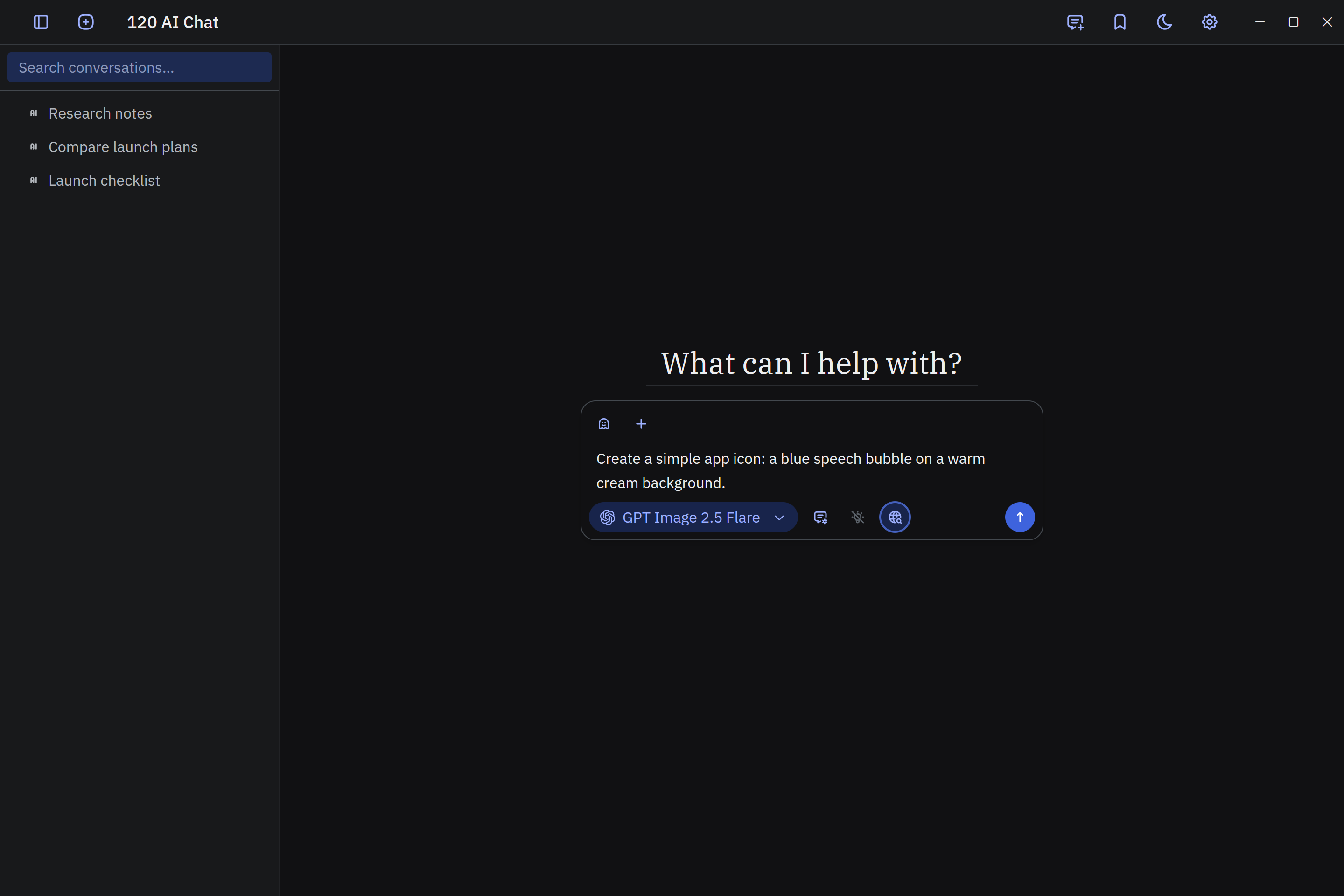
To edit an image, choose an image-editing model, attach the image, and describe your changes.
Use a temporary conversation
- Start a new conversation and select the ghost button above the message field.
- Choose a model and chat as usual.
- Select the ghost button again to keep the conversation.
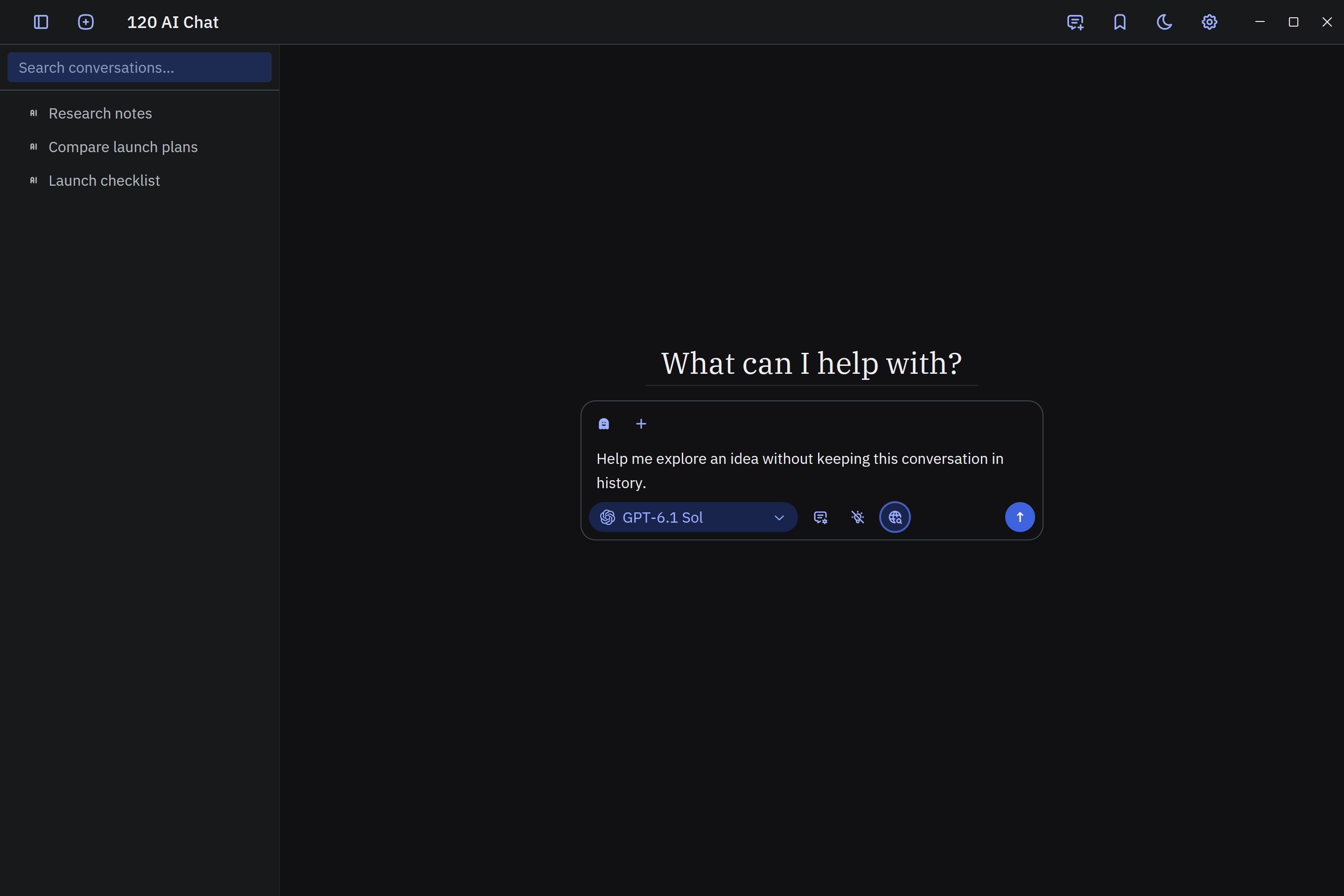
Work with messages
Use the action icons beneath a message:
- Copy: copy the message text.
- Edit: change a message and save your edits.
- Regenerate message: generate another response.
- Stop generation: stop the current response.
- Speak: read the message aloud. Select Stop speaking to stop playback.
- Delete message: remove a message.
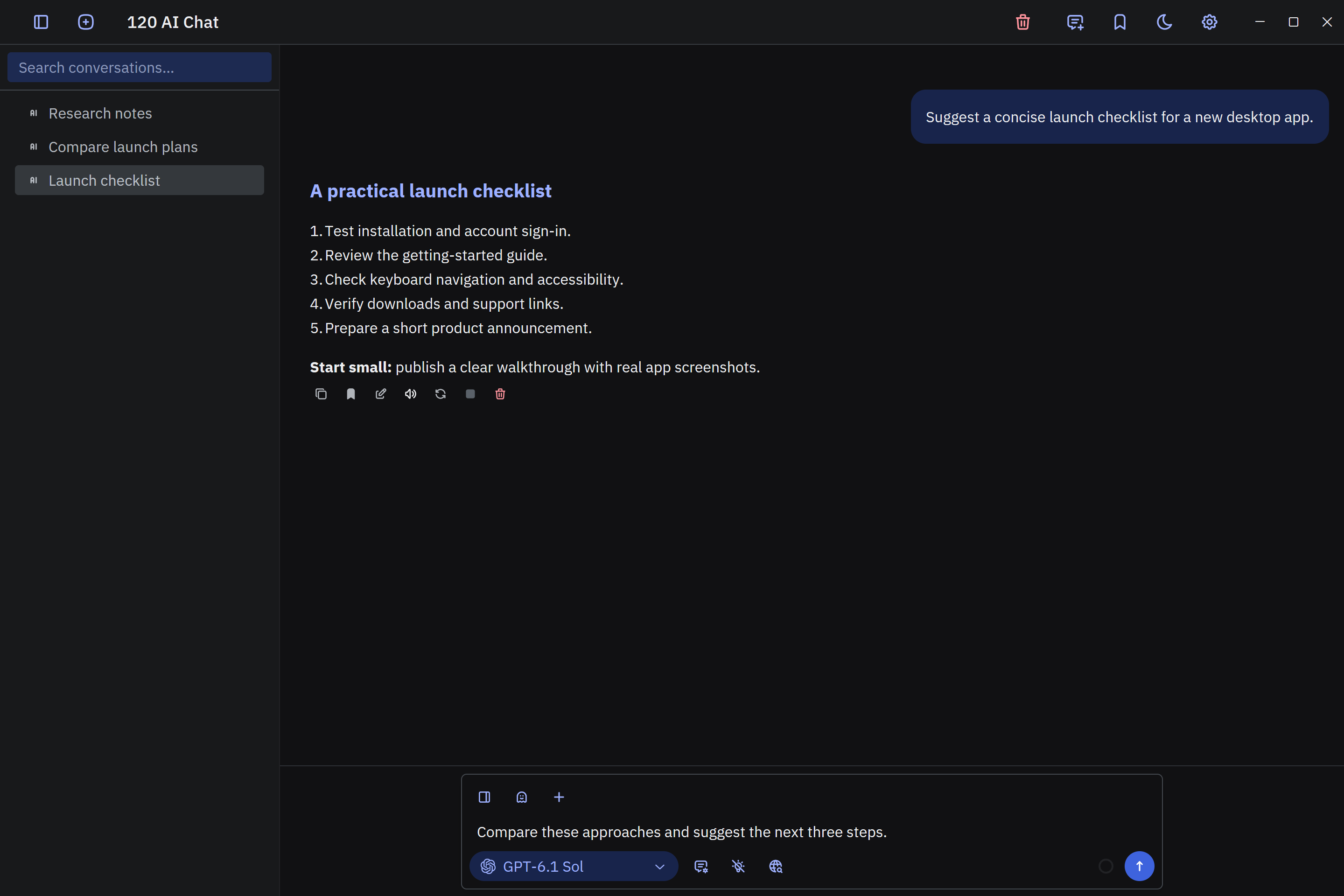
Use Previous message, Next message, and Jump to latest message to navigate long threads.
Find and organise conversations
Use Search conversations… in the sidebar to find a conversation by title. Right-click a conversation to:
- Star a favourite, or Unstar it.
- Rename its title.
- Delete it.
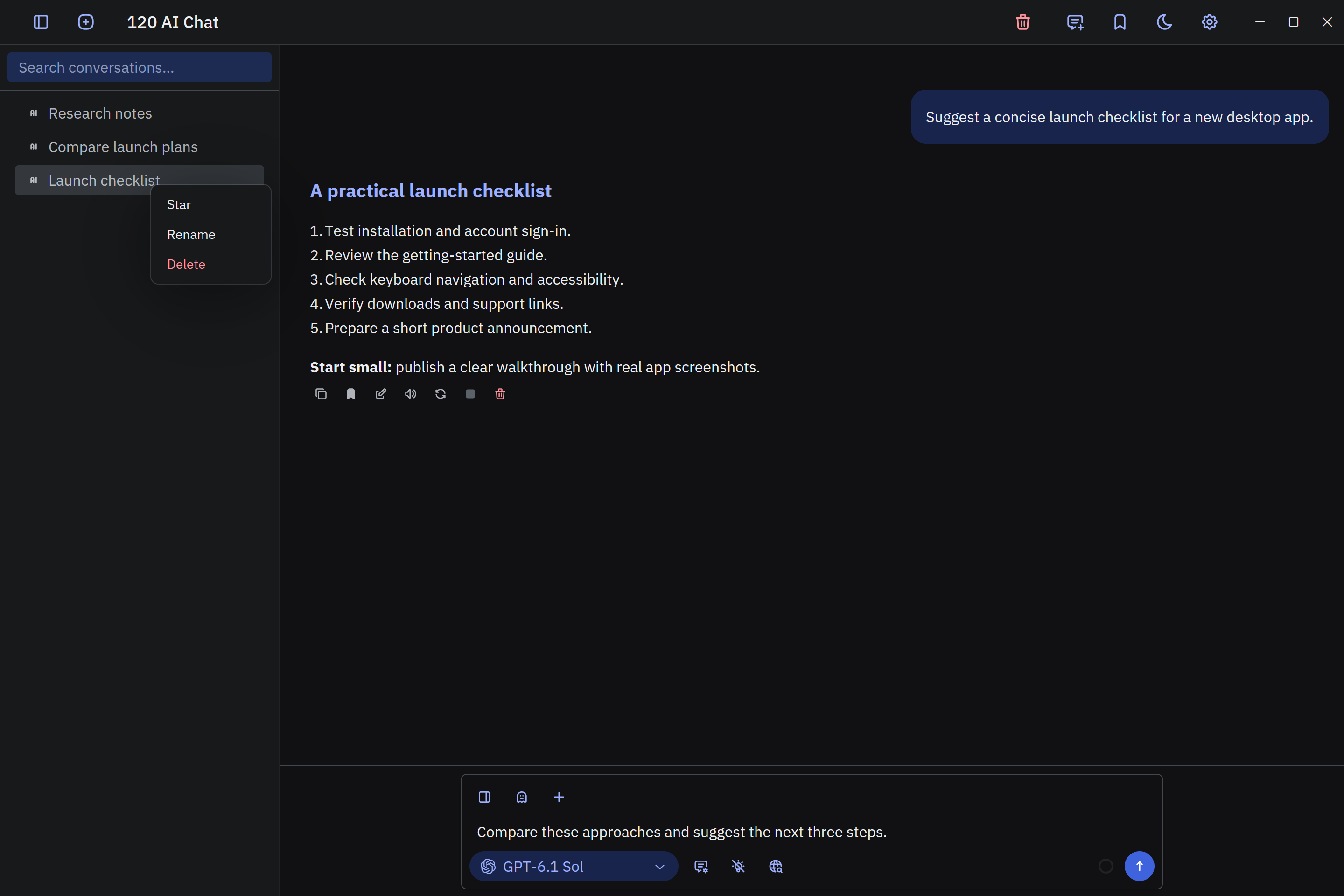
Bookmark useful messages
- Select Bookmark beneath a message you want to revisit.
- Select the bookmark icon in the title bar to see your saved messages.
- Select a bookmark to jump to that message.
- Use Delete bookmark to remove it from the list.
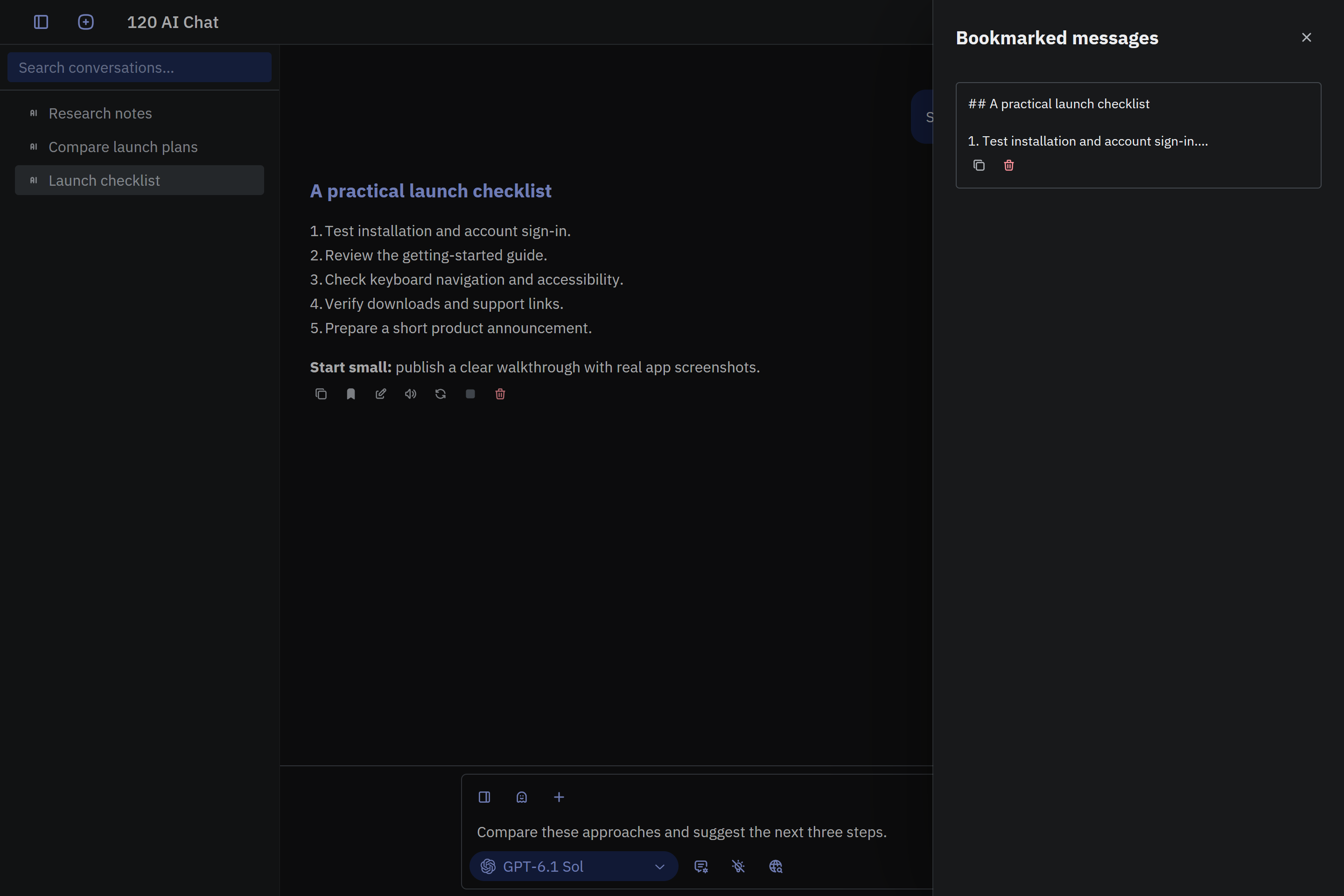
Adjust the appearance
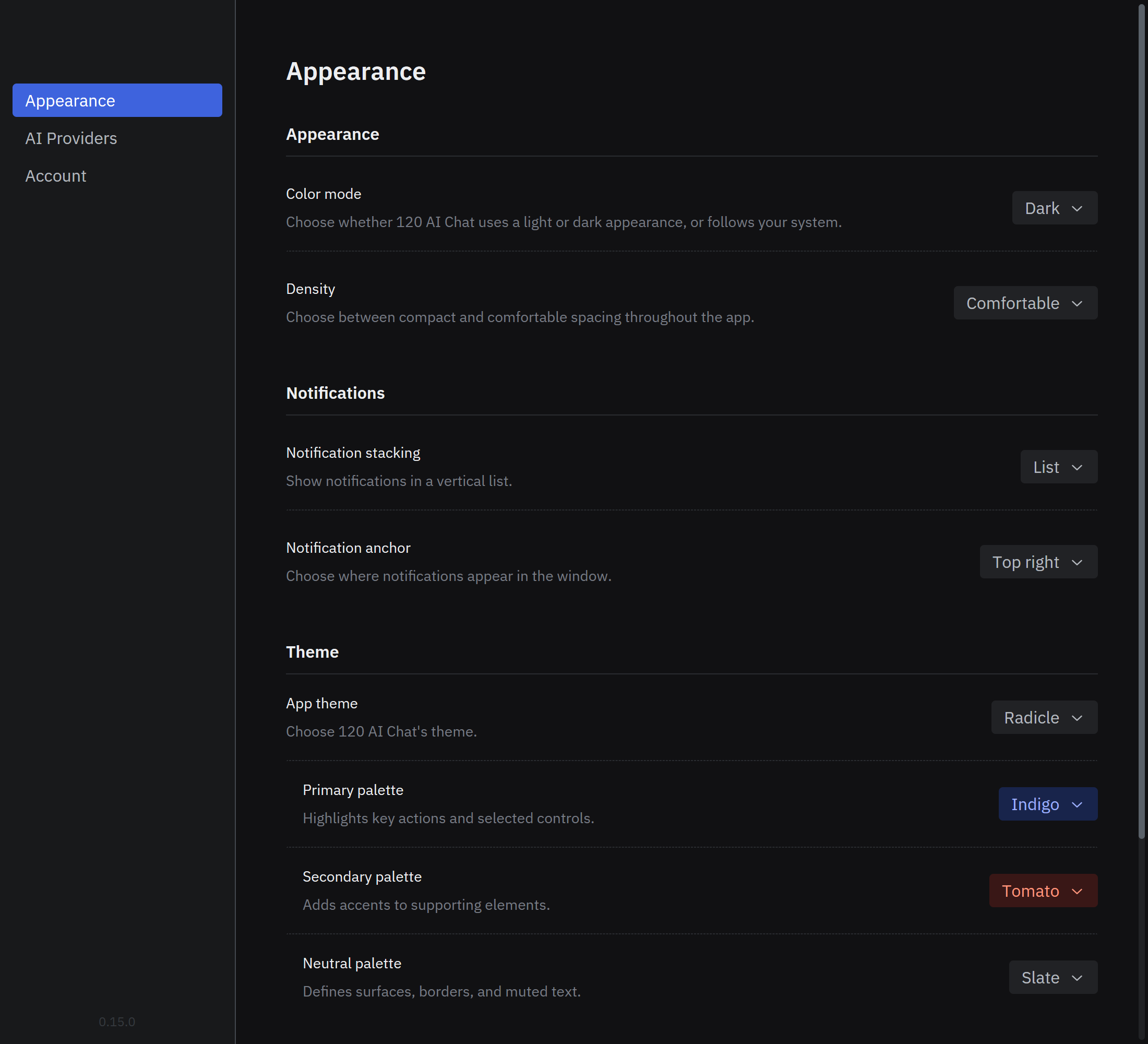
Open Settings > Appearance to customise the interface:
- Color mode: choose light, dark, or system appearance.
- Density: switch between compact and comfortable spacing.
- App theme and palettes: choose interface colours, styling, and syntax-highlighting themes.
- Notification stacking and Notification anchor: choose how and where notifications appear.