How to use 120 HN
Browse Hacker News stories, follow comment threads, and summarise articles and discussions.
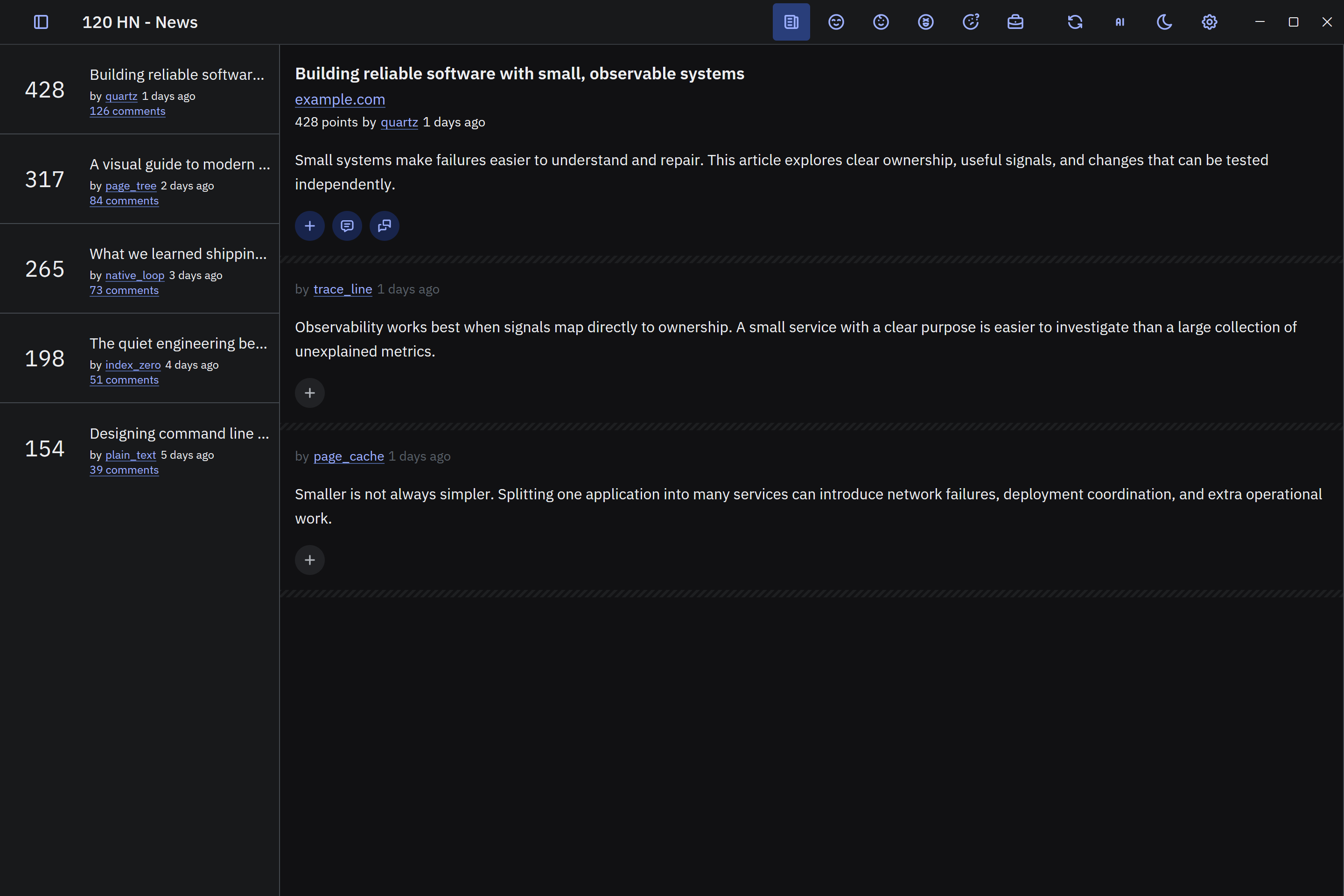
Browse stories and feeds
Select a feed in the title bar, then choose a story in the sidebar:
| Feed | What it shows |
|---|---|
| News | The main Hacker News feed |
| Top stories | Recent top-ranked stories |
| New stories | Recent submissions |
| Show HN | Projects and work shared with the community |
| Ask | Ask HN questions and discussions |
| Jobs | Job posts |
Open the original article
Select the source domain beneath a story's title to open the article in your browser.
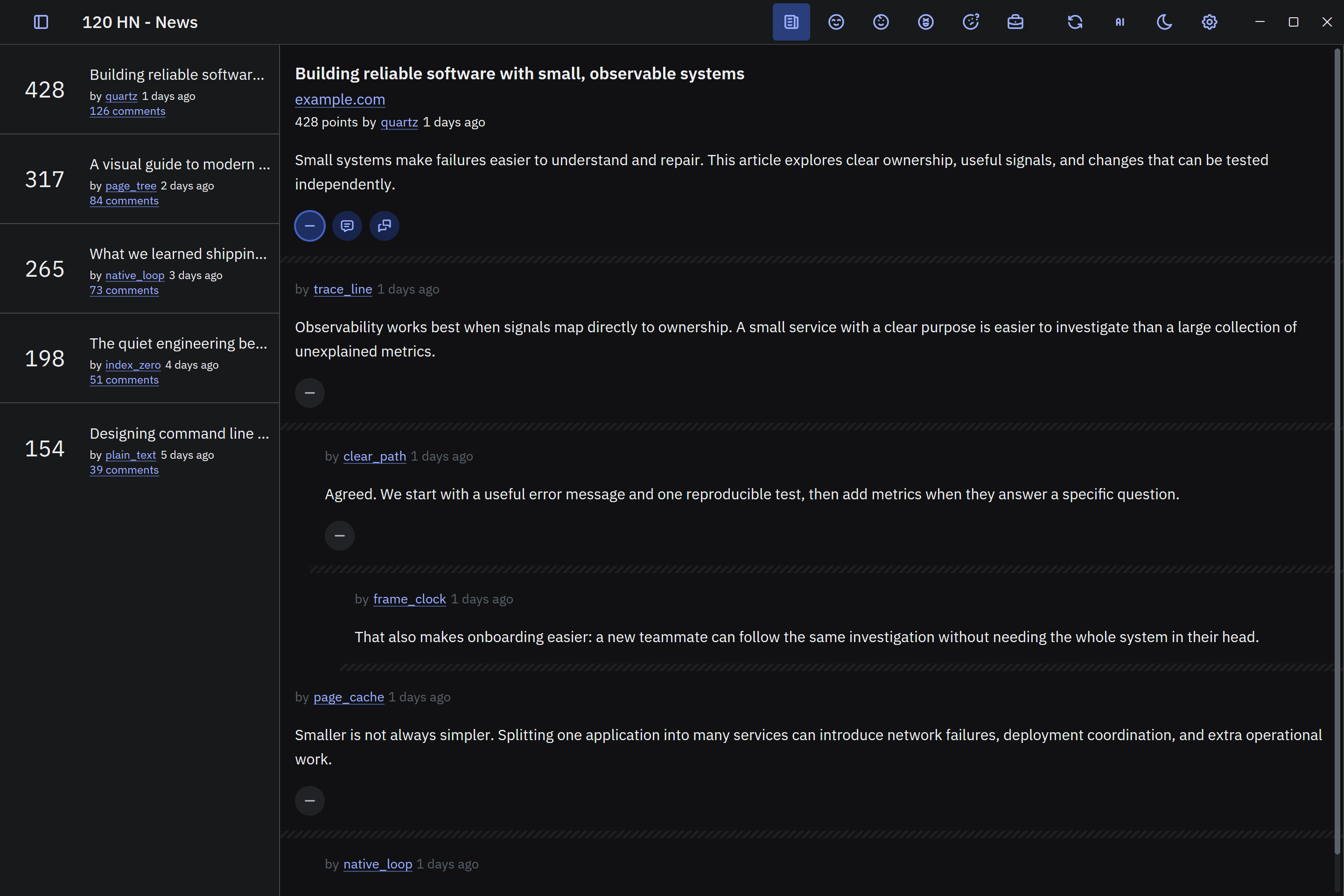
Expand and collapse comment threads
- Select + beneath a comment or reply to read its replies.
- Select − to collapse those replies.
- Use + or − in the story's action row to expand or collapse all comment threads.
View an author profile
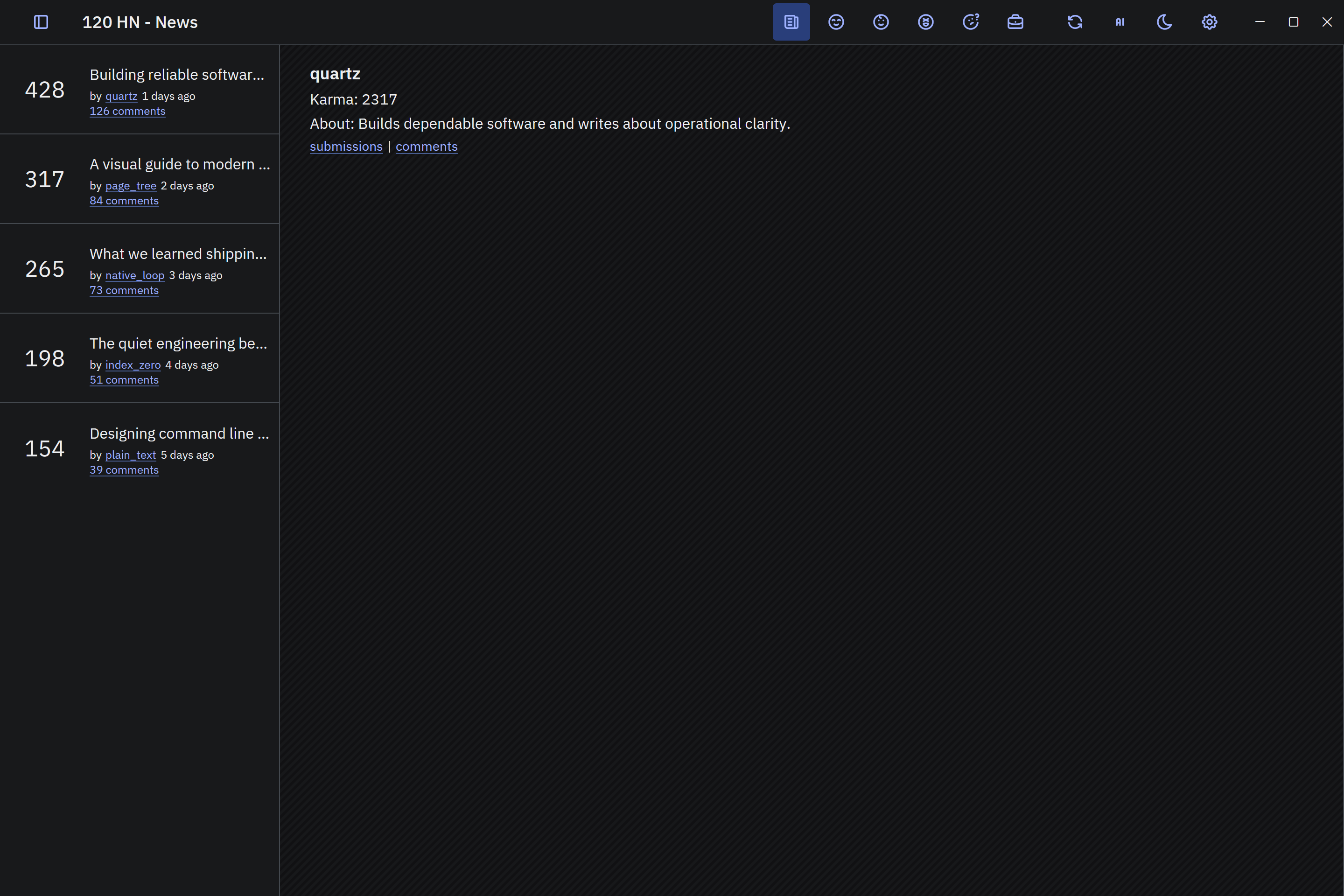
Select a username beneath a story or comment to view the author's profile. Select submissions or comments to open their Hacker News activity.
Refresh the story feed
Select Refresh in the title bar to update the current story list and enable automatic feed refresh. Select it again to turn automatic refresh off.
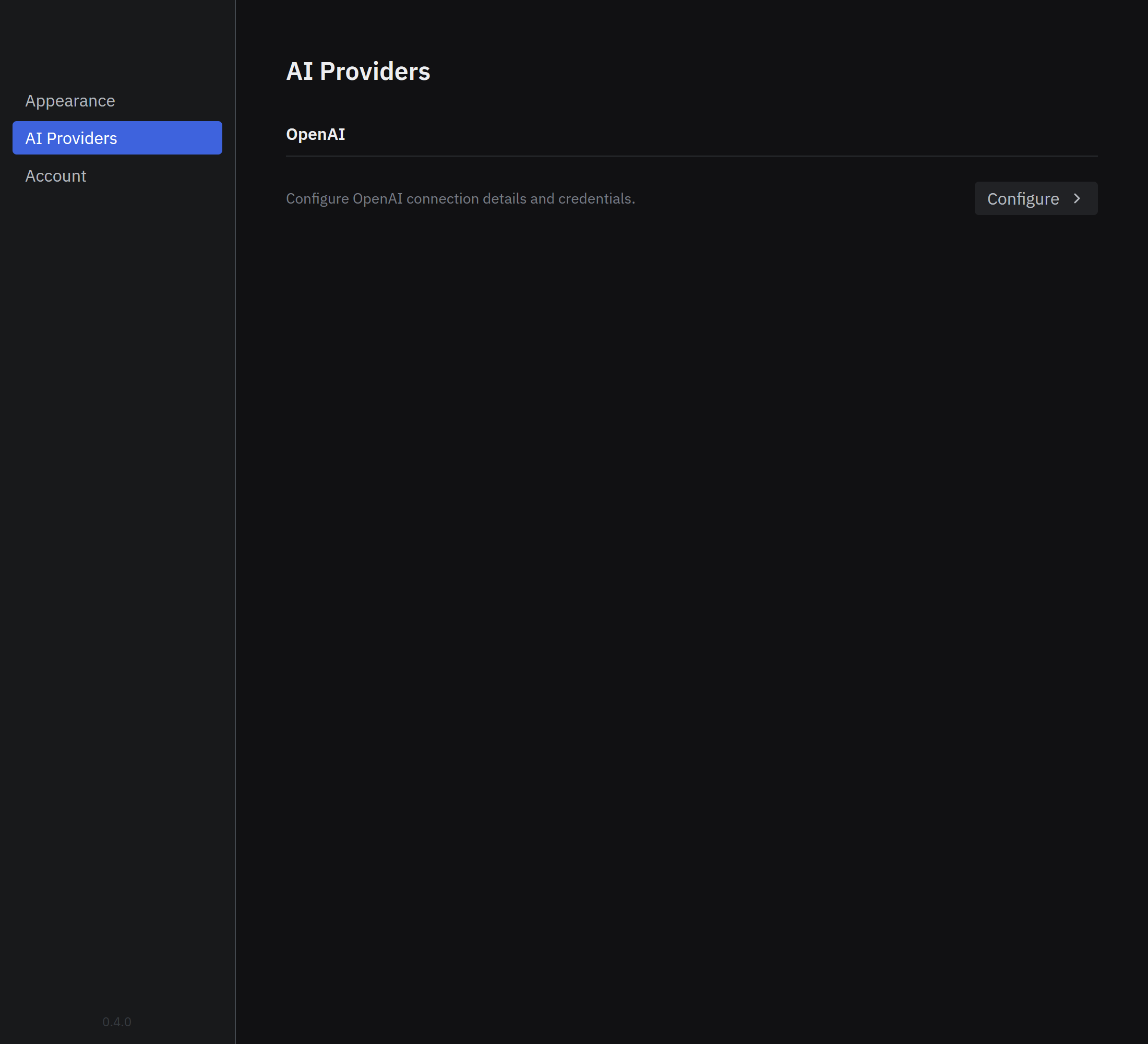
Connect OpenAI for summaries
- Open Settings > AI Providers.
- Select Configure beside OpenAI and enter your API Key.
- Select Save.
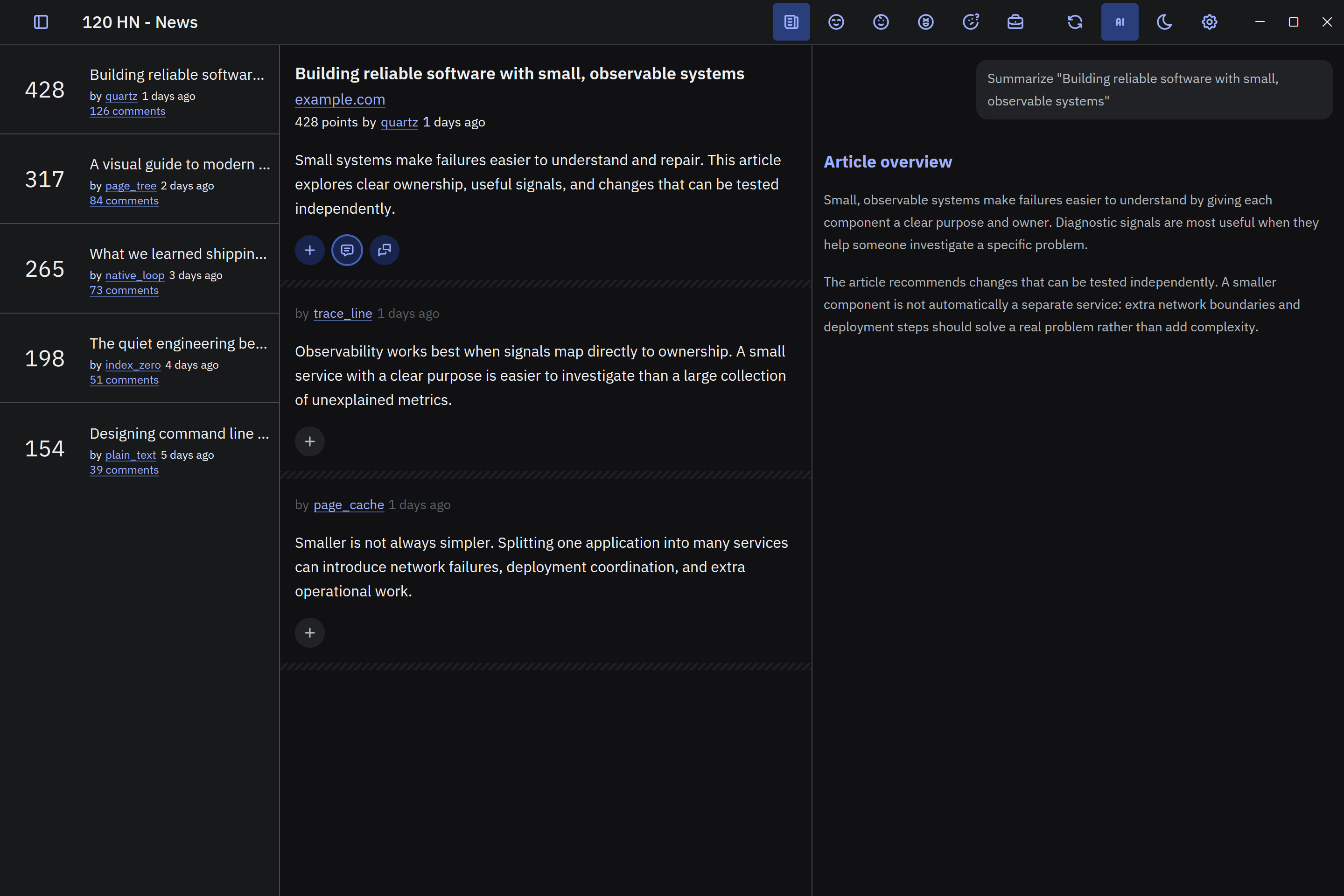
Summarise a story
- Open a story.
- Select Summarize story content in the story's action row.
- Read the summary in the AI conversation pane beside the story.
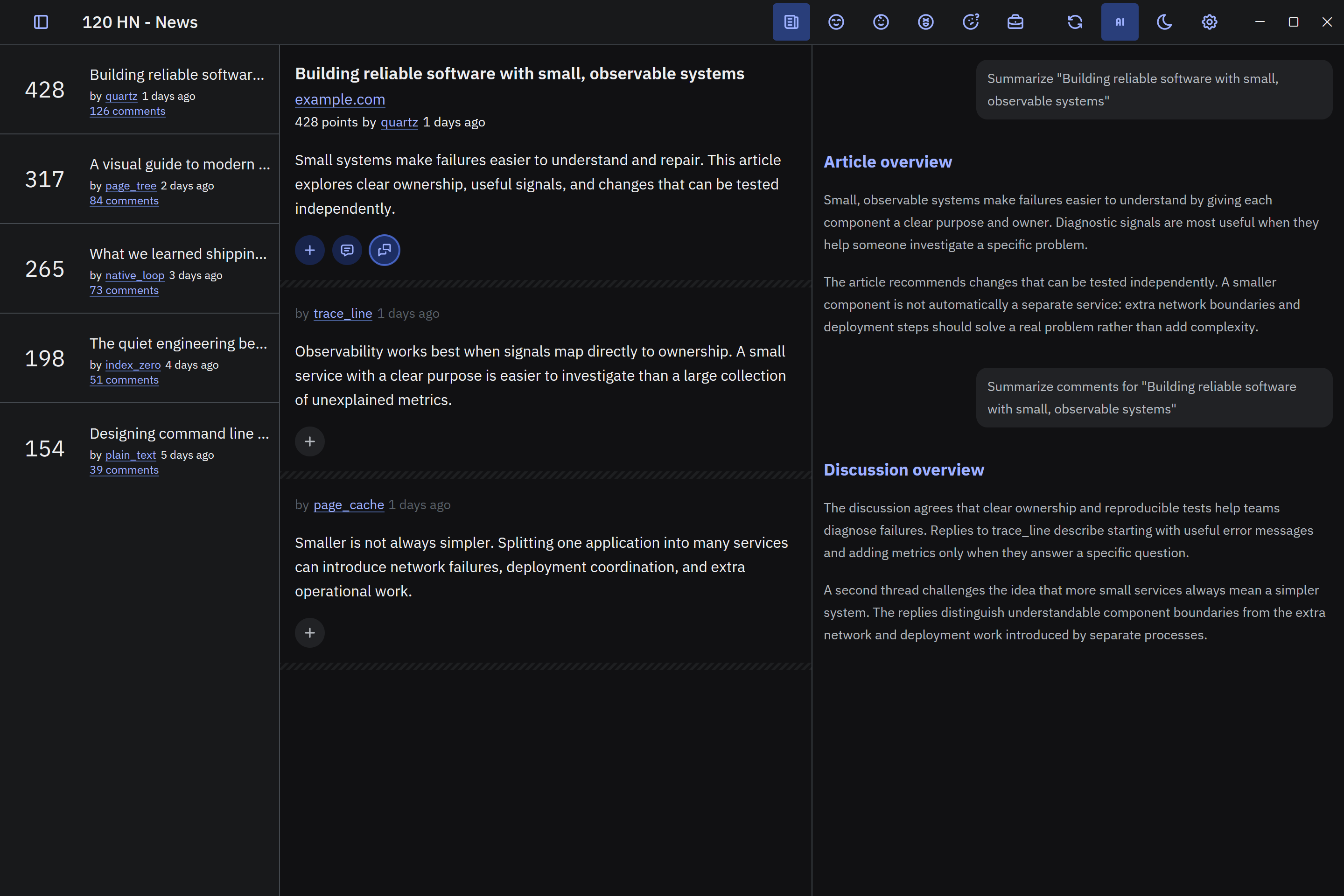
Summarise a discussion
- Open a story with comments.
- Select Summarize story comments beside the story-summary button.
- Read the discussion summary in the AI conversation pane.
Show or hide the summary pane
Select Toggle AI conversation in the title bar to show or hide the summary pane.
Adjust the reading appearance
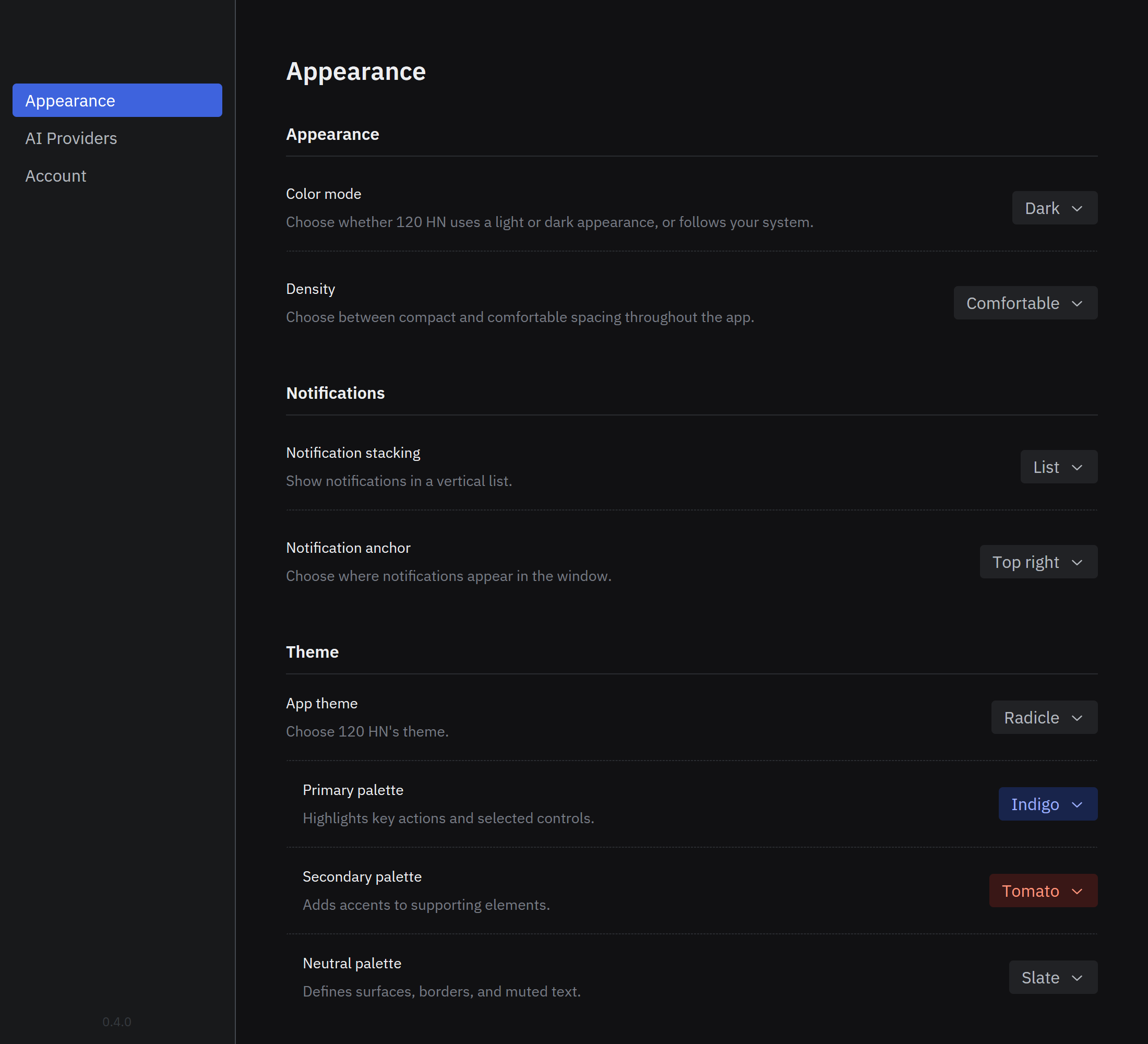
Open Settings > Appearance to customise the reader:
- Color mode: choose light, dark, or system appearance.
- Density: adjust the spacing of interface controls.
- App theme and palettes: choose interface styling and colours.
- Notification stacking and Notification anchor: choose how and where notifications appear.