

Export your video or timeline
Every export requires 120 Showcase Pro: video, audio, subtitles, and timeline files. See plans and billing for plan details.
- Select Export in the project toolbar.
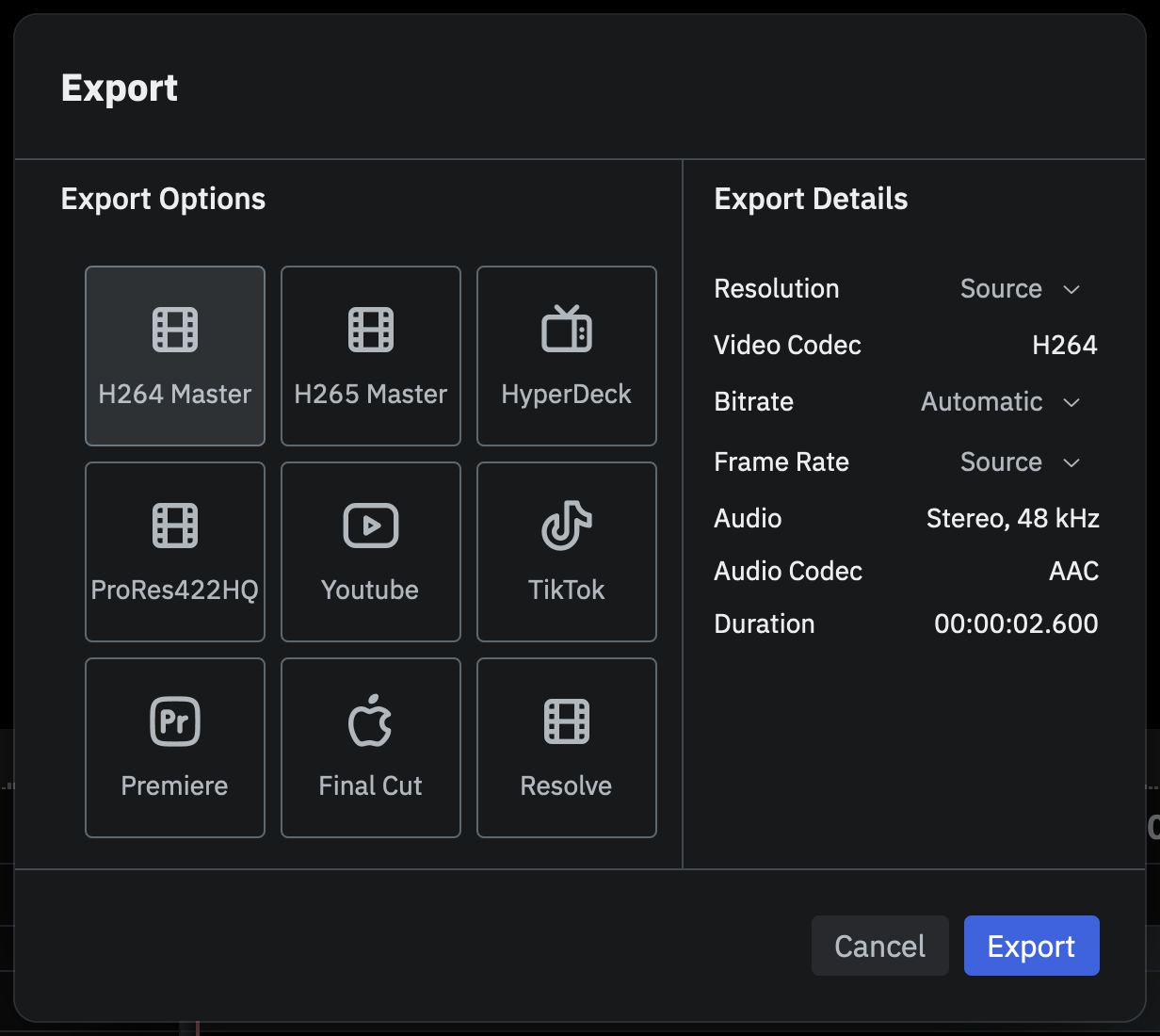
- Choose a video preset, such as H264 Master, YouTube, or TikTok. For a single video, you can also choose a timeline option for Premiere, Final Cut, or Resolve.
- Review the resolution, bitrate, frame rate, codec, and audio details shown on the right.
- Select Export, choose where to save the result, and wait for it to finish.
You can also export audio and subtitles from File > Export.